When a portable monitor earns a place in the bag
A travel display is most useful when it solves a routine workspace problem without creating two new cables and a fragile stand.
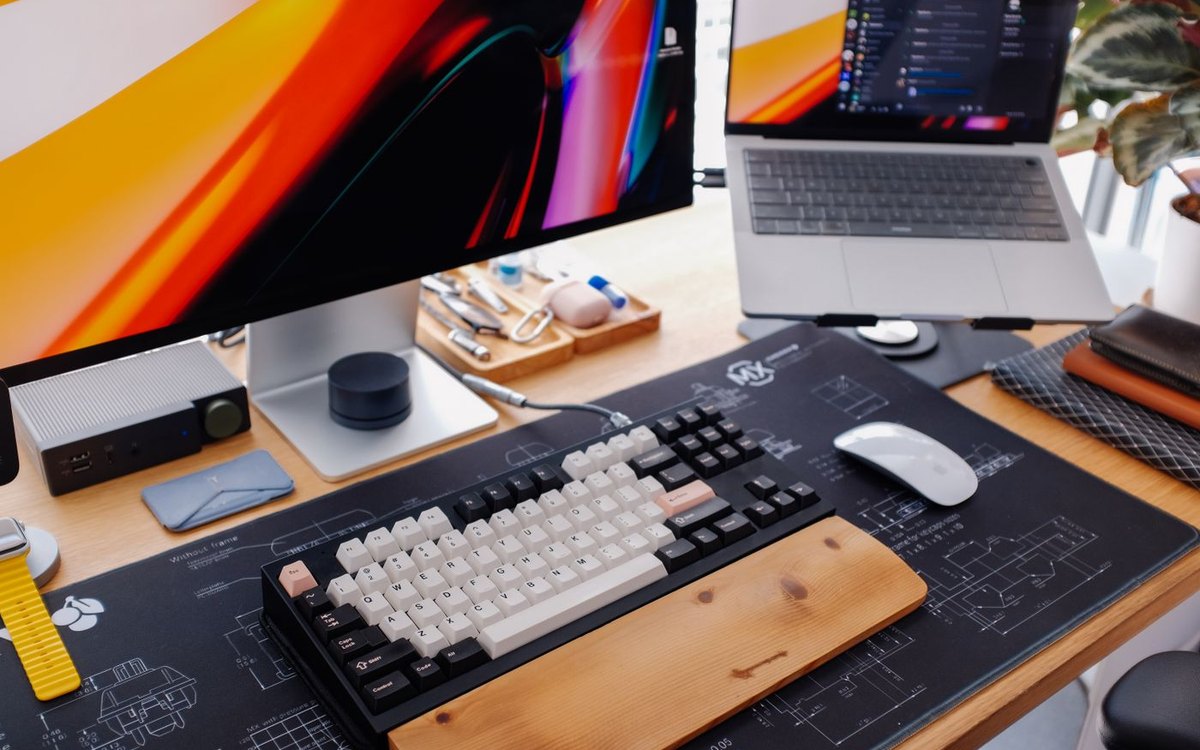
Start with a tablet-size piece of cardboard and put it on the desk you expect to use. The miniature drawing exercise quickly exposes how little room is available beside your laptop when a charger and a notebook are already there. Estimate where the portable screen can stand without leaning on the laptop. Add the cable route and space for a mouse. If your usual workspace is a train tray or a narrow library bench, a second screen may be easier to place above the keyboard only if you can keep it supported and still see the laptop's camera.
Split a real task across it
A portable display is often best as a reference surface. Put a PDF or meeting agenda there while you write on the laptop. Try keeping a design brief on one display and the workspace on the other. Pay attention to how often your pointer crosses the gap between them. A small screen near the laptop can work well for a quiet reference and poorly as the main home of a long spreadsheet. If the scale of menus changes across the two screens, find an operating system scaling combination that makes sustained reading comfortable on both.
When evaluating a screen on a shop floor, bring a page from the sort of material you expect to read. A high-contrast promotional loop says little about whether small gray type is easy to see. Inspect the same page against a window and under office light. Compare the reading experience at a normal sitting distance and keep note of whether you leaned forward. On a model advertised as touch-enabled, check whether touch works with your operating system and whether another connection is needed when you use the display input you prefer.
Put a contract around the second screen
A second display brings more room for focused work and more room for interruptions. Try assigning a single role to it for a day. For reading a report alongside notes, leave the report at a comfortable scale and keep chats on the laptop only when you need them. For a support shift, park the queue on the outer panel and keep the response editor in front of you. A reliable role makes it clear whether you reach for the screen often enough to set it up.
Turn off notifications on the auxiliary screen if they obscure the reason you placed it there. Many systems can move notifications and the main work area between displays. Verify the setting before going into a meeting. A tiny portable screen can become a useful clean surface for one document even if you dislike using two full-size panels at home. It may be worth bringing for reference work and staying in the bag when all you need is a browser and a note.
Next consider where you look. The preferred position of a main screen is usually close to the center of the work area. A second panel off to one side can be comfortable for occasional glances. When you routinely hold your gaze in that direction, try a different setup and see how the angle changes your posture. Bring a small stand if it properly supports the display at a useful height. Lay out the accessory on an actual desk and compare sitting naturally with working in the posture the monitor seems to require.
Try a lower brightness than the display booth
A glossy screen near a train window can make it hard to read pale type. Move the device until it faces the light you will encounter, then lower the brightness to a level you might actually accept while on battery. Some displays maintain their useful contrast in moderate ambient light. Others become frustrating when the screen surface reflects a ceiling panel positioned at the wrong angle. Point the screen slightly away from the lamp or try the same page away from the window to understand what position would be practical at a crowded table.
If the monitor will show creative work, compare what happens to midtones and familiar neutral colors in both panels. A portable panel may have an entirely adequate image for reference while introducing a visible variation in color. Read the displays' specifications and test whether the system can manage a separate color profile if you intend to use one. Use a controlled screen and viewing environment for critical decisions. On a shared project, mark which screen you used to review the file so people understand where the visual judgment was made.
The fastest practical test is to open a small spreadsheet and a page with a dark theme. Scroll slowly on both displays and check whether text stays easy to track. Some devices advertise future-facing refresh rates, though the same mode may be unavailable with the lightweight adapter in your bag. Look at the operating system's reported resolution and rate before assuming the difference concerns the panel. For prolonged writing, straightforward text, usable reflections and predictable scaling often settle the question before the more technical settings come into play.
Compare stands and cables with the bag closed
A sleeve can serve as a stand if its folds hold the display at stable angles. Try using a cable on the side that pulls away from the support. A small stand can seem secure until a connector tilts it with the monitor on a narrow table. Add enough slack, then gently move the laptop as you would when changing seats. Find a way to pack the display and stand without pressing adapters or thick plugs into the panel. You can use a rigid partition where appropriate, or change which part of the bag holds the cable pouch.
Set a packing target for the entire kit. You might accept its bulk on trips that include full days of work and leave it at home on a crowded commute. Compare the unopened bag with and without the display, both in weight and whether it allows a notebook or a headset to fit in the same sleeve. A detachable stand and two wide plugs can erase the advantage of a screen chosen only for its thickness. Test whether one safe route for transport lets you unpack the device without disturbing the rest of the bag.
Rehearse setup and teardown in order
Connect to a layout you can reproduce from memory. Ask whether you open the laptop before plugging in the monitor, whether the position persists after the screen is removed, and whether the monitor can be disconnected without moving unsaved windows out of sight. If your operating system offers an option to remember locations, test it with two applications you use often. A screen on loan from a colleague should behave predictably before you rely on it during a formal presentation.
For meetings with people in the room, decide in advance whether the second display should mirror the laptop or extend it. Mirroring can be helpful when you want to turn a document toward someone briefly. It can also expose private notes if you forget how the display is configured. Test with a harmless document. When you share a window over a video call, enter and exit the share and confirm which display keeps the outgoing content and which holds the speaker view.
At the end of the rehearsal, unplug the screen and put everything into the same pockets you used to start. Time the whole transition once. When it is awkward to set up between locations, consider whether the intended task can wait until you are somewhere convenient. A tool that takes two minutes to place might be a bargain for a day of drafting and an unnecessary interruption if you are only sitting down for half an hour.
If you work in a shared place, leave enough space on the table for someone to sit beside you. A small monitor that works from only one viewing angle may need to rotate for a conversation. Ask a colleague to read a line from a normal seat before counting on it for a review session.
Map the connection chain
One appropriately capable cable can simplify a compatible setup. Check that your host supports video output from the port you plan to use and that the portable screen accepts both the display signal and the power it needs. A travel display with its own power input can be handy if you use an HDMI source or want to reserve the laptop battery. In that case, count both the signal cable and the charger in the pack. If you also need a converter, inspect whether the connection is secure when the screen, cable or adapter is lightly moved as it would be in regular use.
Try connecting the monitor from sleep and after a restart. Confirm that your preferred arrangement returns by itself and find the short route to display settings if it does not. Video meetings can change the display's usefulness if the camera is now beside the screen you watch. Rehearse the layout in a short local recording and see whether your gaze still feels reasonable. Include the stand, sleeve and cables when weighing the kit. If the bundle has a clear role on a trip you already take, you can judge whether that role is worth carrying every week.