Refresh rate is only one part of a gaming display
A gaming display should handle the frame rates your hardware regularly produces and feel clear at the resolutions you use.
A large number beside a monitor's name is a ceiling. A game has to deliver frames to approach that ceiling. A desktop can draw a quick test far more easily than a detailed game scene, and a console may have its own limits and performance modes. Before you choose a monitor, record the frame rates you actually see in the games you care about. A driving game on a lower graphics setting and a complex simulator at full detail may occupy very different parts of the same display's range.
Read the monitor and the source together
Check the graphics card or console, the display input and the cable as one route. A display may accept its highest refresh rate over one input or under a particular combination of resolution and color settings. Verify the input description and the video mode in the operating system or console after connecting it. Use the monitor's on-screen information if it shows the incoming rate. Checking three pieces of the chain can identify a mode that was available but never selected.
Variable refresh can make uneven frame delivery less distracting when the source and display work together and the frame rate lies within a supported range. The practical behavior can vary across modes and hardware. Enable it in the scenario you care about and revisit a part of the game that produces rapid changes in load. Look at dark scenes too, because alterations in brightness can be easier to notice against a dim background. The VESA test specification treats flicker as a separate test, a helpful clue that a variable-refresh label does not describe every property you see.
Test a busy scene that already belongs to you
Open a local game, run to a point you know and write down the graphics options you started with. Pick a repeatable movement and choose an ordinary reference, such as the speed at which you can read a sign while turning. Repeat the movement in another area where the system tends to work harder. A game engine occasionally holding a frame for much longer than the others can feel rough even if its average frame rate looks healthy. If your game exposes a frame-time graph, look for spikes in the exact seconds during which you noticed hesitation.
Bring up an easier scene and check the same motion. A single whole-number frame-rate counter can flatten the difference between a steady stream and one broken by long gaps. At approximately sixty frames per second, uniformly delivered frames would arrive about every 16.7 milliseconds, while one extra-long wait can make a small movement look uneven. A display with a fast maximum can show what it receives quickly. A frame cap or a different graphics setting may help the source deliver more consistent timing. Do the simple repeat before replacing hardware.
On a console, compare the game's available graphics and performance modes only after confirming what each one changes. An image with a shorter draw distance or lower render resolution may be easier to move smoothly. A different version of the game or a software update can change how well a mode behaves. Test the version you use, write down any changes you made and inspect its results in motion with the same brightness. A glorious still frame can be a misleading way to compare a display whose purpose is sustained movement.
Read motion settings in plain language
Overdrive is one way a display can push its pixels toward their new values. A stronger setting may cut one kind of trail and reveal another if a transition goes too far. The labels on the on-screen menu can be imprecise. Step through them with the same game motion and pay attention to pale outlines around dark objects and dark trails behind bright ones. If you mostly work around a moderate frame rate, include a lower-rate pass before saving a setting that looked best near the display's maximum.
Some displays offer a mode that pulses the backlight to make motion look clearer. The mode may reduce brightness or be restricted to particular refresh settings. Read the display's manual, check the compatibility with variable refresh and decide if the lighting effect is comfortable during your own sessions. Try a quiet desktop page alongside a game. A useful motion setting that is uncomfortable for writing should be easy to switch off at the monitor. Note whether the screen remembers it per input or changes it globally.
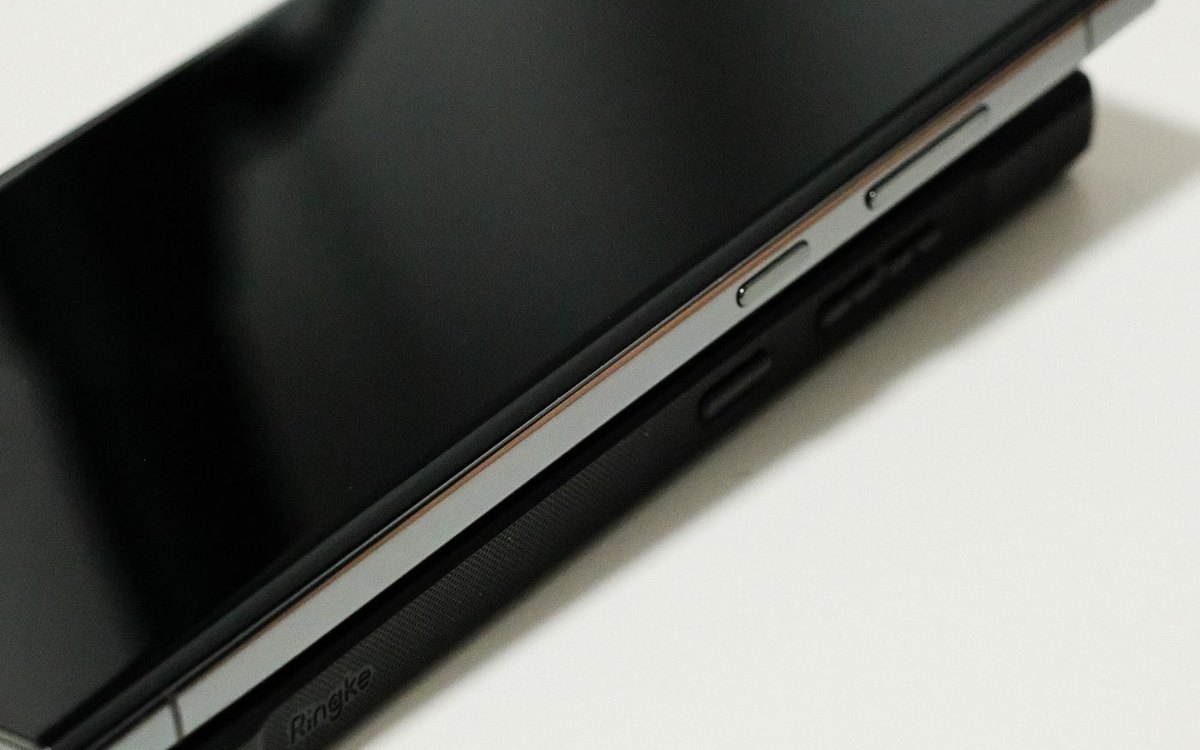
Controls can differ even when monitors have similar names. Check that you know where to find the brightness, sync behavior, selected input and motion mode on the device in front of you. A joystick tucked beneath the edge may be easy to reach on the stand and awkward once a monitor is tightly mounted above a shelf. If you use more than one console or computer, rehearse changing input and returning to your familiar settings.
Take stock of where the display will sit
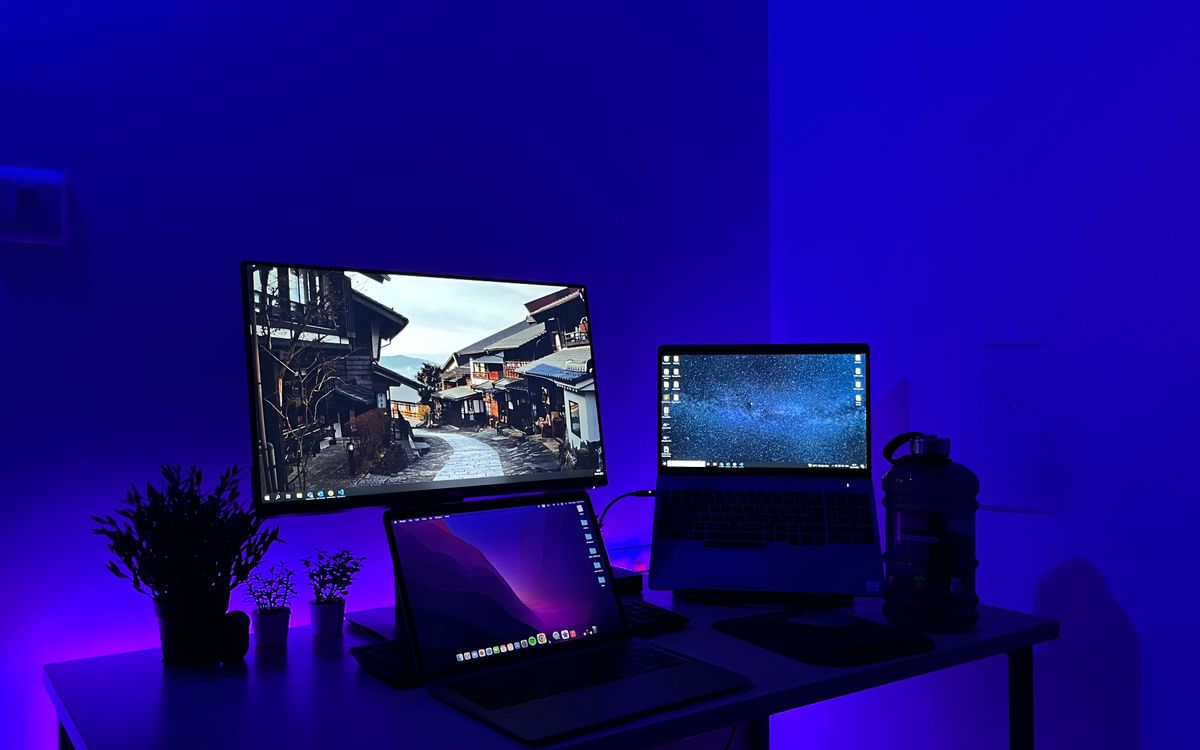
Use the desk distance you actually expect. Sitting closer makes a lower resolution easier to notice and can make a wide panel harder to see at a glance. In a game with status information at the corners, check whether you can locate it quickly without turning away from the action. For a monitor with a deep stand, measure the space left for a keyboard and where your arms land. A setup with less desk depth might benefit from compatible mounting hardware, though that needs to be included in the price and installed safely.
A bright window can hide dark areas in a game and a lamp reflecting off the display can hide motion at one edge. Try placing the display to improve that angle before comparing peak brightness. At the end of a long session, check the same image on a lower setting that you find comfortable. If you work in the room during the day and play at night, verify that you can save a suitable position for both conditions. Nighttime brightness is a routine you can judge directly without comparing maximum specifications.
Consider the parts of the desktop that are still
Type a paragraph while leaving the game profile active. Inspect slender text on dark and light backgrounds at ordinary zoom. Try moving and resizing windows and look at how the display handles edge detail. If you can choose a higher-resolution productivity setup and a faster game mode, record the change in one sentence so that you remember how to return to it. A beautiful mode hidden under several menus may end up used only during the first week.
Use a work call or a quiet video to check motion outside the games as well. Video sources have their own frame rates and may be scaled or repeated by the player or system. A high refresh maximum does not tell you how beautifully a particular title will play. Try predictably paced material and compare the practical outcome at a comfortable reading distance. The useful display can take on several roles while keeping the small limits of each arrangement easy to remember.
If one area still looks wrong, return the configuration to a known baseline and change one thing. As a useful first division, ask whether the flaw remains in different applications and inputs. It is easier to investigate a narrow problem when you can say exactly which mode and which scene reproduce it. Compare your ability to track an important detail before and after the change, and keep the setting that makes that detail easiest to follow.
An unusual motion problem can appear only when the game runs over a capped connection or another application uses the graphics hardware. Close only the unnecessary apps and change one setting at a time. Record the output resolution, refresh rate and graphics options so that you can return to the baseline. If the source passes through a switch or a capture device, test a direct connection to the display if that is permitted by the device instructions.
Include the way the screen comes back. Change to a different source, put the computer to sleep and then return to the game. Check whether your operating system kept the last refresh choice. An unexpected return to a modest default can make the original comparison look unreliable. The display should be as predictable after a break as it was during the first setup.
Move your eyes across one scene
Use a predictable movement such as rotating past a column or steering beside a fence. Look at edges you can identify as they pass. A monitor with a faster signal may still show visible smearing if individual pixels transition slowly. Trying the display's default motion setting and a stronger one can expose a bright or dark trail on a moving edge. Those effects are difficult to describe with a single number. Check the settings at lower as well as higher refresh rates if your games span both.
Resolution affects the choice on both sides. If a monitor lets you switch between a high-resolution mode and a lower-resolution mode with a faster maximum, compare text legibility and game detail in each. One mode may be ideal for a competitive game and the other easier to read during daily work. Save profiles if the display supports them and check how many control actions a switch takes. The useful question is whether the monitor keeps the busy parts of a game easy to track without making the rest of your desk work harder.