Before buying a Matter camera, check three versions
The specification, device firmware and controller support can arrive on different dates.
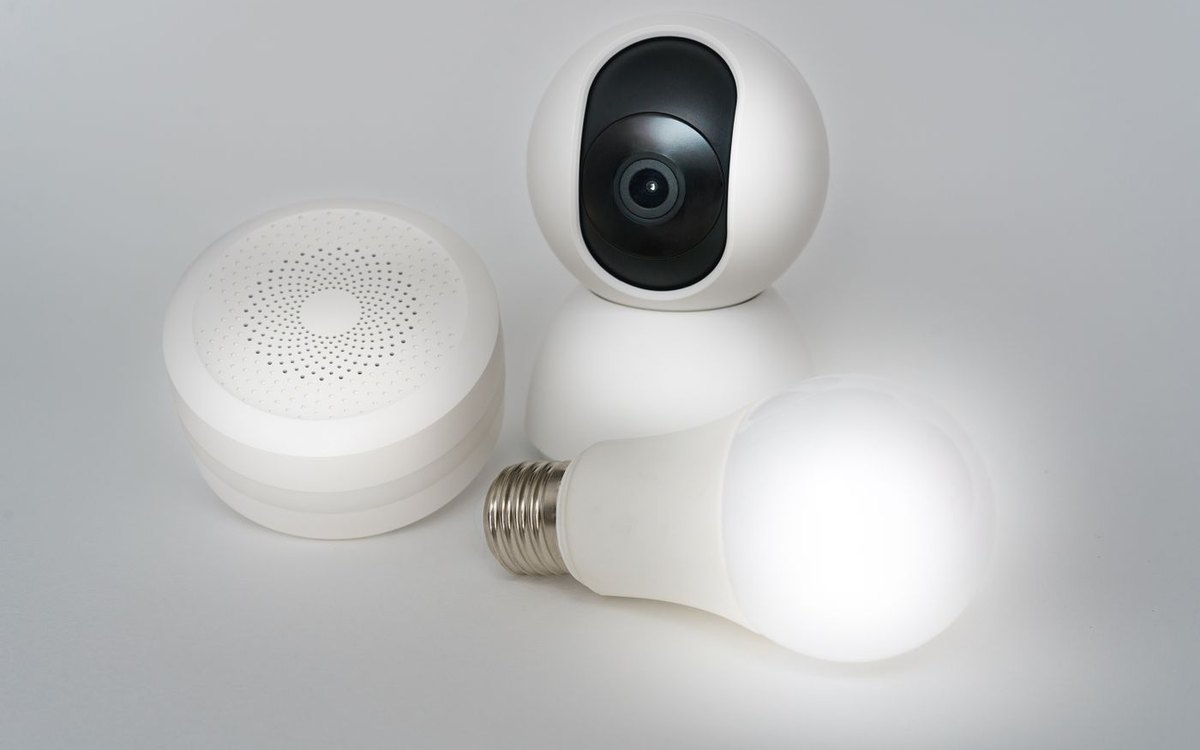
The Connectivity Standards Alliance added cameras and video doorbells to Matter 1.5. In March 2026 it described additional camera capabilities in Matter 1.5.1, including ways of delivering multiple media streams within a structured session. A standards release creates a common vocabulary for manufacturers and ecosystem developers. It does not establish the list of functions your current controller can use with a store listing you found yesterday.
Find the exact feature in your combination
Choose the routine you need, such as an ordinary live view on a household display. Look up the model and firmware and confirm the ecosystem’s support for the specific category and function. Ask whether setup needs the manufacturer app and which controls stay in that app. A recording plan and a snapshot view may have separate requirements even when the device carries a common compatibility mark.
Recheck before the return window closes
Give a second household account the permissions it should have. Test the device after one normal restart and after the expected network is back. Keep any physical chime or manufacturer-supported fallback you need. A careful purchase decision compares the practical features that ship today while treating the published standard as a way to understand how support may broaden.
Turn the feature list into one sentence
Suppose that what you want is to see who has rung the doorbell from a display in the kitchen. That sentence specifies more than a product title suggests. The doorbell has to report the press, the intended person has to receive a useful signal, the display has to start the correct feed, and both devices should do those things on the accounts that will actually use them. Write the sentence down. Next to it, describe how you will know it worked. For example, a household member should be able to open the live view while their phone is in another room.
If you also need to review deliveries from the previous day, give recording its own line. Play a completed clip, check the time and see whether the person who needs the clip can view it. A device can provide live video through a controller while storing clips in the manufacturer’s service or on a supported recorder. That arrangement can suit some households. The decision is easier when everyone knows which app they will open and what happens to saved clips if they change service plans.
Read the three versions in order
The specification version tells you when Matter gained a way to describe a feature and what the standard makes possible. The Connectivity Standards Alliance first announced camera support with Matter 1.5 in November 2025. Its March 2026 update described efficiency and flexibility improvements, including multiple media streams managed inside a single session. Since newer versions of Matter also exist, compare the published versions with the explainer most relevant to your camera question. Seeing a newer version number in a controller’s marketing headline still leaves the support for a particular camera operation to check.
The next version is the one on the accessory. Record the exact model and any hardware revision supplied by the retailer. Two products with almost identical names can have different hardware, network options or software support. Verify that the manufacturer explicitly names the correct model and version when describing its Matter features. Check the Alliance’s certification listing if you need to confirm the scope of a certification. When support is described as a future update, work out what the available product does today and whether you would be content using it that way after the return window closes.
Finally, look for the controller version and the software around it. A home platform can have a mobile app, a dedicated home hub and a smart display with separate software versions. A mobile app update can make a feature visible where an older display still lacks the same controls. Look for documentation that names the capability and the hardware you intend to use. If it is unclear, give support the exact model numbers and ask about the specific sentence you wrote at the start. That produces a more useful answer than asking whether the camera works with Matter at all.
Identify which app owns each job
Before installing the camera high on a wall, lay it out on a temporary surface and follow the manufacturer’s setup process. If setup requires the manufacturer’s app, check why you need it and which operations use it later. Firmware updates, account administration, image adjustments and subscriptions can sit in that app even if everyday viewing is available somewhere else. Keep required setup material secure, and share access through supported household permissions when they exist. Single-account shortcuts can become inconvenient when the person who configured the device is away.
Try the view from your primary controller, then from the display or app a second resident uses. Observe the quality and delay when each viewer is alone and during one test with both viewing at the same time. The article’s 1.5.1 update explains why a system can have different streams for different purposes. A lower-bandwidth preview, a feed for recording and a stream picked for analysis can have different characteristics. A specification’s support for these arrangements leaves product design choices such as resolutions, viewing clients and actual simultaneous limits to the equipment and services you buy.
Test local and away-from-home use separately
Check the home network at the intended spot. If the product uses Wi-Fi, see whether the manufacturer offers a way to check reception at the camera. A phone in the same location gives you a rough indication. Its radio, antenna and supported bands can differ, so try the installed camera in the exact spot before drilling permanent mounting holes when you can. If the camera uses a wired connection, confirm which kind of power and data the product needs and use only the cabling and equipment the manufacturer supports. An uncluttered desk on setup day makes a poor comparison with an enclosed porch and several walls.
Do one test while you are on your home network and another while a permitted phone is using its cellular connection outside the home. Keep the camera pointed at a harmless test scene and ask household members to agree to any recording used in the test. See whether the remote viewer receives an alert, can open it and can find the expected recording, if applicable. If your household expects the system to be useful during an internet outage, check the maker’s documentation and try the supported local behavior with the internet connection unavailable while the home network remains up. Record which parts rely on service outside the home.
Check notifications, recording and ownership
A useful alert belongs with someone who can act on it. Set up one routine event, such as a household member deliberately pressing the doorbell. See how long each person waits for the alert and what opening the notification does. Try the same action at two times of day to catch obvious problems. Audio quality, false alerts and the ability to distinguish a visitor by a door from movement farther away can matter more than a high-resolution stream. Give a new camera a few days of ordinary use before deciding whether its notifications are worth keeping.
Look up what is stored, where it is stored and how long it stays there. Understand how to remove a clip, revoke another person’s access and retire the device when you no longer use it. Be thoughtful about camera placement and any requirements that apply where you live, particularly if the view reaches a neighbor’s property or a shared area. Limit audio and video capture to what the installed device needs to do. Those questions have the same importance whether a camera works through the manufacturer’s own app, a home hub or more than one controller.
Keep the hardware comparison grounded
Check the useful view at both noon and dusk. Try walking toward the entrance rather than standing quietly in the middle of the frame because that is what a delivery normally looks like. Consider whether a low mount captures a visitor’s face and whether broad coverage brings part of the public sidewalk into view. Check what a person inside the house hears when a doorbell is pressed and whether they know what to do if their phone is charging elsewhere. The way a camera reaches your controller can be the deciding feature between two otherwise suitable devices. It cannot improve a poor sightline, an unsuitable power source or a doorbell nobody inside can hear. Make sure the basic installation suits the actual space before paying for extra features.
Before the return window ends, record one row for every purchase requirement. Include the camera model, current firmware, controller and display model, app used for the task and result. The record might show that a press reaches the kitchen display and two people can view live video, while playback is available only from a separate app. That is specific enough to decide whether the arrangement fits. It is also a useful starting point when a controller update introduces something new and you want to check which parts of the existing setup have actually changed.
When shopping for a second camera, use that record as a short compatibility checklist. Give the new device a descriptive name and make sure the controller presents it separately from the original camera. Repeat any shared-access tests with both devices installed, since the limits of a hub or subscription may only become apparent when you add a second view.