Apple HomeView and the questions a shared screen brings home
The November launch puts identity, placement and household permissions in the foreground.
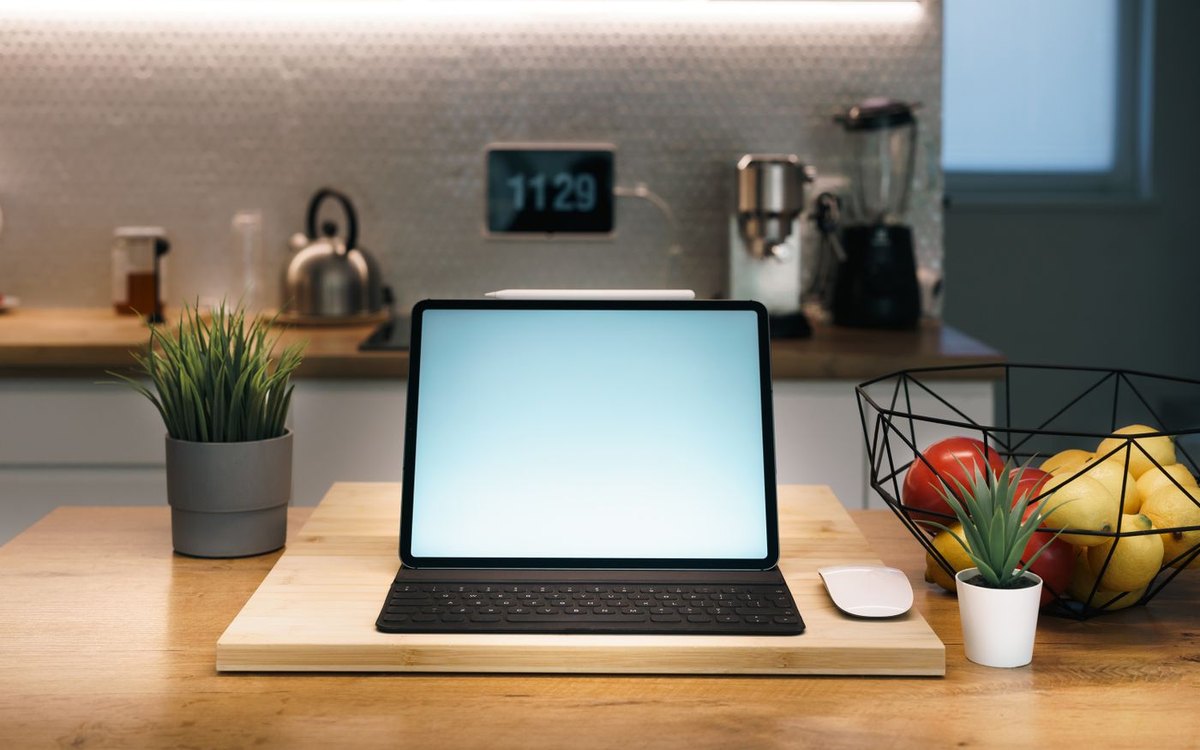
Apple said its HomeView display went on sale in select markets on November 13, 2026. Its announcement described a seven-inch screen for home controls, calls and other activities. It also said the device can recognize up to six people by face for personalized features when specified paired-device conditions are met. Those details make the counter space where it lives as important as the display on the hardware itself.
Start with where it will stand
Consider the parts of the home where people naturally pause, and what they can see from the usual angle. A kitchen shelf and an entryway create different audiences for a call, an alert or a private reminder. The announced tabletop and wall models affect power, placement and whether the device can be moved later. Consult local availability and language support before planning around it.
Rehearse a shared routine
Describe what a visitor should be able to do and which shortcuts only residents should see. If you try the product, test an ordinary shared action as well as a personal action, using the official settings and a harmless sample event. Ask how the device behaves when an expected paired phone is absent. Those tests show how the shared surface fits the household more directly than a list of compatible services.
Separate the jobs of a shared screen
A display in a kitchen may handle music for anyone at breakfast, a video call with family after school and the household’s lights at night. It is tempting to count those as proof that one device belongs in the room. Each job has a different audience. Music can be open to visitors. A personal calendar may contain information to which only one person has access. A view from a door camera may belong with the people who manage the home. Work through the jobs one by one before giving the screen the most visible spot on the counter.
For the common uses, make a small checklist in household language. Can a guest pause music without borrowing a phone? Can a resident check whether the downstairs lamps are on? Is there a clear place to answer a call when others are nearby? Choose one setting you would want to be private, and make sure it is easy to say who should see it. Give the display a smaller role if the most common jobs already work with a switch, a speaker or a calendar on a phone.
What personalization needs in the room
The feature list and the conditions for a feature deserve separate attention. Apple’s documentation says that viewing personal content, such as Messages or Calendar, generally depends on recognition of an enrolled face and a paired iPhone or iPad that has recently been unlocked and is on the same Wi-Fi network. Apple describes a limited case where a paired device that has recently left the local Wi-Fi can still qualify, subject to further conditions. The paired device can also affect which Siri functions are available. For a household considering the purchase, the relevant question is which devices residents already have and bring into the room in a normal day.
Start with a test event that has no personal content. Ask each participating resident to confirm which experience appears during ordinary use. Then let the paired phone remain in its usual spot and check that the group’s shared controls still make sense if a person cannot access a personal item. If somebody has declined enrollment, see whether the device is still useful to them for the everyday jobs you listed. The limit of six recognized people sets an upper bound on personalized use. That number may matter sooner in a multi-generational home or regular house-share than in a product demonstration.
Walk around the room before choosing a mount
To judge where a seven-inch display belongs, put an object of similar size in the proposed location and walk along your usual routes. Check eye level for someone sitting and for the shortest person who will use it. Look at the spot in morning and evening light. An entryway can be a good place for switches and a poor one for a call if another person has to walk behind whoever is speaking. A tabletop model can move a few feet when the room changes. A wall mount asks you to choose a useful viewing height and power route before anyone has used it in a normal morning.
Check power and installation together. Apple offers separate tabletop and wall-mounted models. Its launch materials describe mount choices for the wall version, including a power-over-Ethernet option announced for a later date than initial availability. Read the current compatibility and installation instructions, especially if a wall installation involves mains wiring or a cable inside the wall. Include the mount, power route and any professional work when comparing total cost. Holding a screen in roughly the right place can once again answer the more basic question of whether anyone will find it comfortable to reach.
Look at what people can see and hear
Identity checks apply to access under the conditions the manufacturer describes. The room still determines who else can see information that is already on screen or hear an answer spoken aloud. Test with a harmless event or contact name while another person stands at the doorway or sits in the usual chair. Ask them what they can see without leaning over the display. Run one ordinary video call and check what the camera frames at a comfortable angle. Exiting a call, muting it and moving the conversation to another device should feel straightforward to the participants.
Be equally deliberate when choosing a shared photo album or a dashboard view. A photograph suitable for the residents may be more widely visible in an entryway. A live entrance view can reveal activity to people passing through the room. Start with a small group of photos chosen for the whole household and only add the controls whose purpose is clear. Ask anyone who lives there whether the camera or microphone placement feels appropriate in that setting. The answer can vary by room even in a household whose members are happy to use the same feature elsewhere.
Compare accessory support with the controls you need
Apple lists support for accessories within its home ecosystem, including compatible Matter devices, and describes features with additional conditions. In particular, a camera tile in a dashboard and the ability to review prior recordings are different needs. Read the documentation for the exact camera model, current software and service plan before changing the household’s recording arrangement. A device’s compatibility badge cannot fully answer how a specific combination handles recording access, activity alerts or permissions for a second household member.
Start with a low-stakes accessory. Use the official controls to switch off a lamp you can turn back on by hand, then ask someone else to do it using their normal account or profile. See what sorts of prompts appear and whether the intended user understands them. Check how you can use a physical switch or the accessory’s supported app if the display is restarting. For equipment that controls access to a home or has a safety role, maintain the manufacturer’s normal physical controls and use dependable ways to monitor it. A screen is one possible point of control in a home with several people and several ways to act.
Treat the trial as a normal week
The most informative trial includes an ordinary weekday, a weekend visitor and an evening when the paired phone is in another room. Notice which tasks become easier after the novelty wears off. A shared timer that everybody can start with full hands might earn its place more readily than an impressive animation. Consider the person who uses the display least often. Text size, recognition reliability, reach and the language of voice commands can matter more to them than the number of apps available. Read Apple’s current feature and language notes for your market. The November announcement lists an initial set of English-language markets for Siri AI and mentions Canadian French support planned for a later update.
Sit down with the household after trying the functions you would use most often. Keep the shortcuts that resident or guest users can explain themselves. Decide who will make future changes and how to remove a person’s access if they leave the household. If you have not purchased the device yet, try describing a single routine in which the screen helps more than the controls you already own. That routine gives you a practical basis for deciding whether HomeView belongs on the wall, on a shelf or on a list of things to revisit when local availability and household needs change.
One last practical detail is ownership over time. Keep the receipt and installation instructions where another resident can find them. Decide who can add a new accessory and how the people who use the house will hear about changes to a shared shortcut. If you later give away the display, follow the manufacturer’s removal and reset instructions while you still have access to the accounts involved. The household should be able to go back to its regular ways of using lights, calls and music after a screen is taken down.
If the display is moved to another room, check the audience again. A welcome photo album on a side table may become visible through a hallway window, and a useful camera tile near the kitchen sink can feel poorly placed beside a guest bed. Moving the screen changes who encounters the information even when the settings stay the same.